> For the complete documentation index, see [llms.txt](https://docs.rbot.site/llms.txt). Markdown versions of documentation pages are available by appending `.md` to page URLs; this page is available as [Markdown](https://docs.rbot.site/discord-en/adding-the-bot-to-a-server.md).

# Adding the Bot to a Server

### Via the "App Directory"

{% hint style="info" %}
This method won't work on mobile devices
{% endhint %}

To add the bot via the "App Directory", click the "Compass" button located on the server selection sidebar

<figure><img src="https://2907848295-files.gitbook.io/~/files/v0/b/gitbook-x-prod.appspot.com/o/spaces%2F8Bijd4WREgt6P8JTIedC%2Fuploads%2F5uoyRM0AzmMlcJksAWs7%2Fimage.png?alt=media&#x26;token=c2b92e7b-4194-42e0-b5b4-de66cafb5ffe" alt=""><figcaption></figcaption></figure>

Next, in the window that opens, find the "Apps" button on the sidebar

<figure><img src="https://2907848295-files.gitbook.io/~/files/v0/b/gitbook-x-prod.appspot.com/o/spaces%2F8Bijd4WREgt6P8JTIedC%2Fuploads%2FTWLjbWlYe9F9b2cOkvKj%2Fimage.png?alt=media&#x26;token=d6b26176-9623-43ea-bac8-58511988becf" alt=""><figcaption></figcaption></figure>

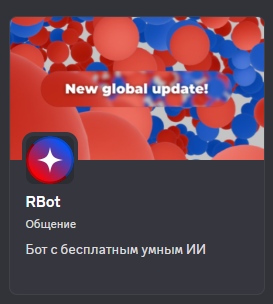
Click it. In the widget that opens, find the "Search" text field and type "RBot" there. Then press Enter. Find this result

<figure><img src="https://2907848295-files.gitbook.io/~/files/v0/b/gitbook-x-prod.appspot.com/o/spaces%2F8Bijd4WREgt6P8JTIedC%2Fuploads%2FkNEJhLk713B3QTKhEn3a%2Fimage.png?alt=media&#x26;token=5a8c8278-2f6b-44af-bf08-61846924f809" alt=""><figcaption></figcaption></figure>

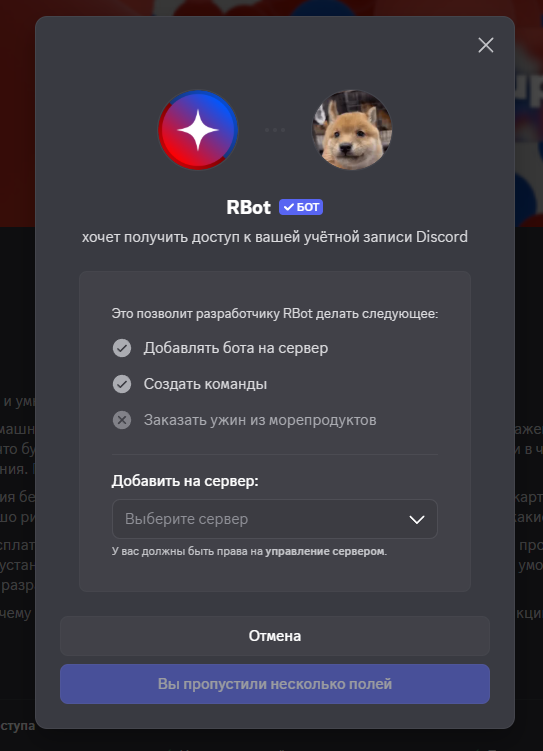
Click it. In the widget that opens, find the "Add to Server" button

<figure><img src="https://2907848295-files.gitbook.io/~/files/v0/b/gitbook-x-prod.appspot.com/o/spaces%2F8Bijd4WREgt6P8JTIedC%2Fuploads%2F3mUvteQdCl51X4U6Clwi%2Fimage.png?alt=media&#x26;token=f4f15a66-db49-4344-a678-0c0c064d13e8" alt=""><figcaption></figcaption></figure>

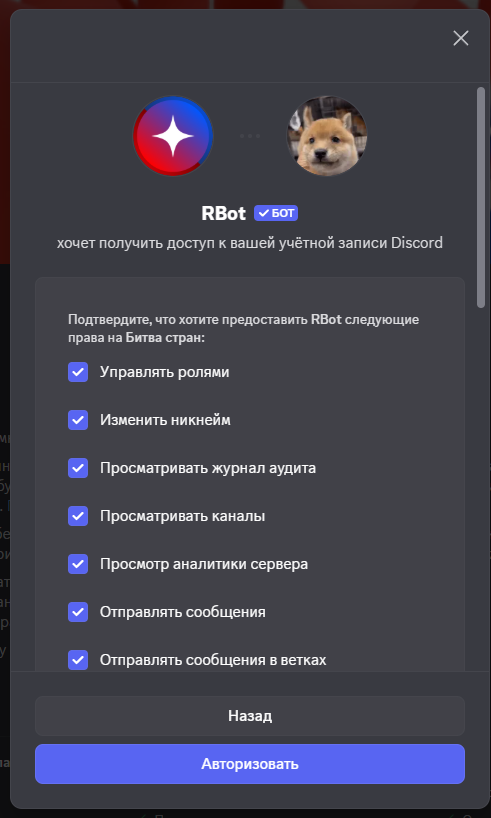
Select the server you want to add the bot to, then click "Continue". On the next screen you can configure permissions

<figure><img src="https://2907848295-files.gitbook.io/~/files/v0/b/gitbook-x-prod.appspot.com/o/spaces%2F8Bijd4WREgt6P8JTIedC%2Fuploads%2FSozvRwOxsDshHwY0bsVY%2Fimage.png?alt=media&#x26;token=beaac28c-626c-4596-b4ea-062bbbebd7ee" alt=""><figcaption></figcaption></figure>

{% hint style="warning" %}
Setting incorrect permissions may cause errors or disable some features
{% endhint %}

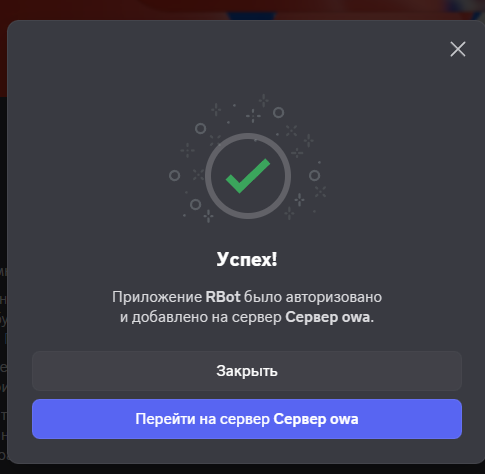
Click "Authorize". After completing these steps, you've added the bot to your server<br>

<figure><img src="https://2907848295-files.gitbook.io/~/files/v0/b/gitbook-x-prod.appspot.com/o/spaces%2F8Bijd4WREgt6P8JTIedC%2Fuploads%2FGqukaKHOzffJMPJmwyy5%2Fimage.png?alt=media&#x26;token=f0b7d352-3020-4c81-8431-a1066dc1e134" alt=""><figcaption></figcaption></figure>

### Adding via Button

{% hint style="info" %}
Works on all devices
{% endhint %}

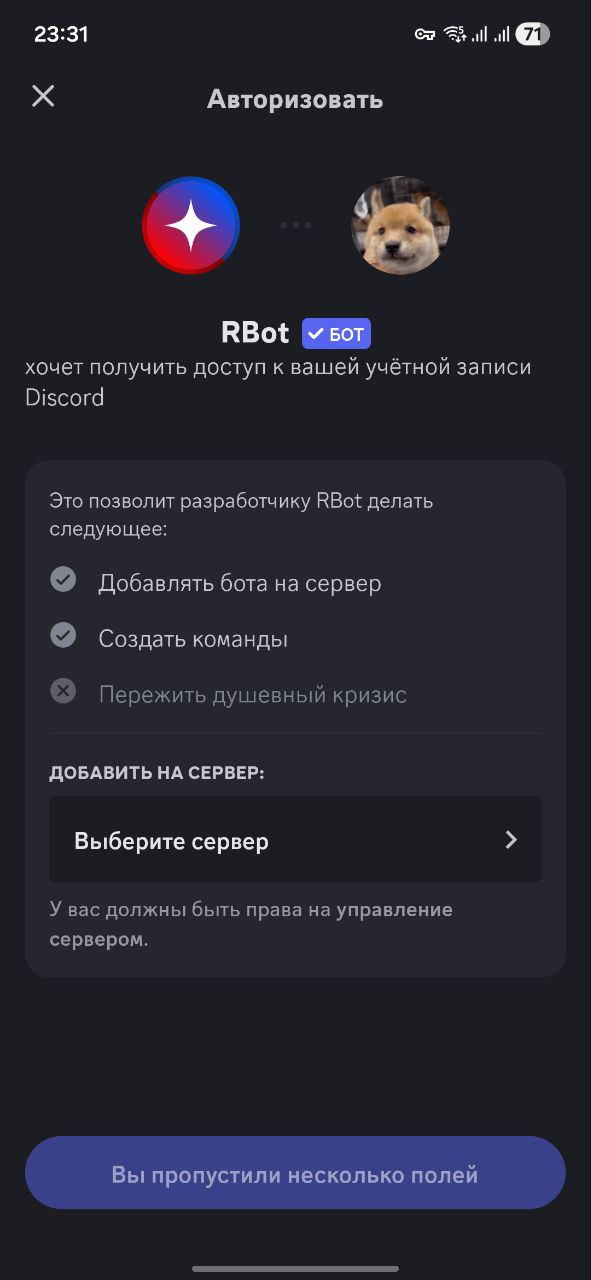
To add the bot to a server, click this button

<a href="https://discord.com/oauth2/authorize?client_id=1049580398834888775" class="button primary" data-icon="right-to-bracket">Add to Your Server</a>

You should be automatically redirected to the Discord app

<div data-full-width="false"><figure><img src="https://2907848295-files.gitbook.io/~/files/v0/b/gitbook-x-prod.appspot.com/o/spaces%2F8Bijd4WREgt6P8JTIedC%2Fuploads%2FndncjcNEtg1p2eB2Ooae%2Fimage.png?alt=media&#x26;token=9e288936-299e-4f3e-b055-0bdb6acb5b9e" alt=""><figcaption></figcaption></figure></div>

Select the server you want to add it to, and click "Continue"

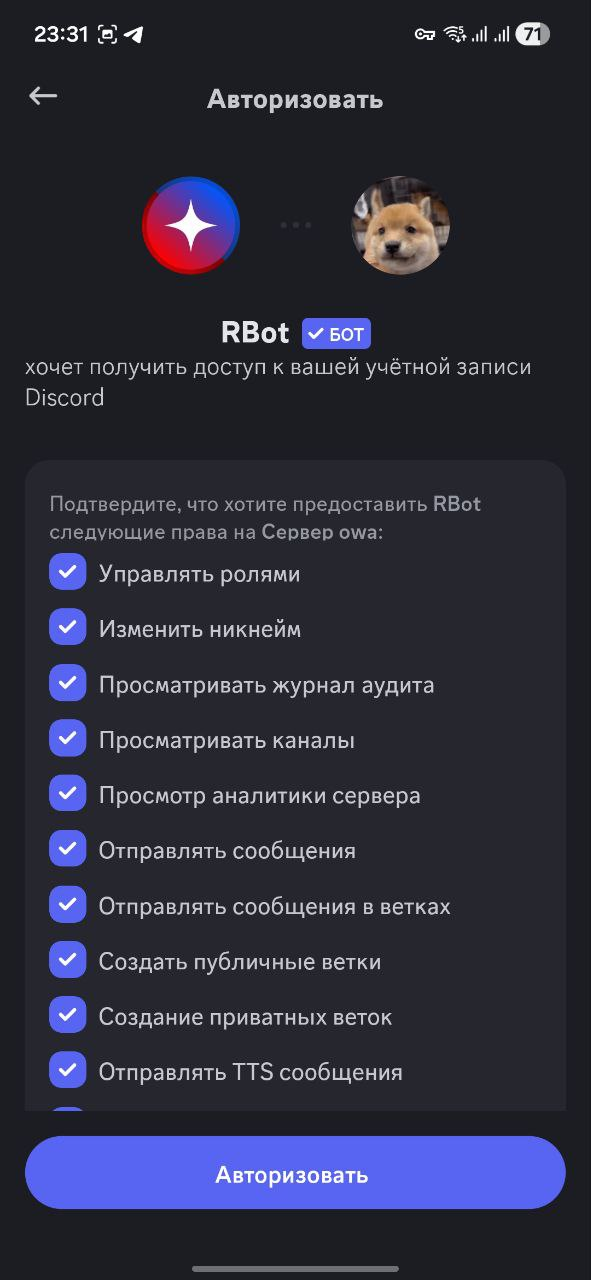
<figure><img src="https://2907848295-files.gitbook.io/~/files/v0/b/gitbook-x-prod.appspot.com/o/spaces%2F8Bijd4WREgt6P8JTIedC%2Fuploads%2FMZzRPc5d1PNGnsfCOBO6%2Fimage.png?alt=media&#x26;token=c01f6002-6ba2-41bd-ad26-9a8faf70a228" alt=""><figcaption></figcaption></figure>

Configure the permissions and click "Authorize"

{% hint style="warning" %}
Setting incorrect permissions may cause errors or disable some features
{% endhint %}

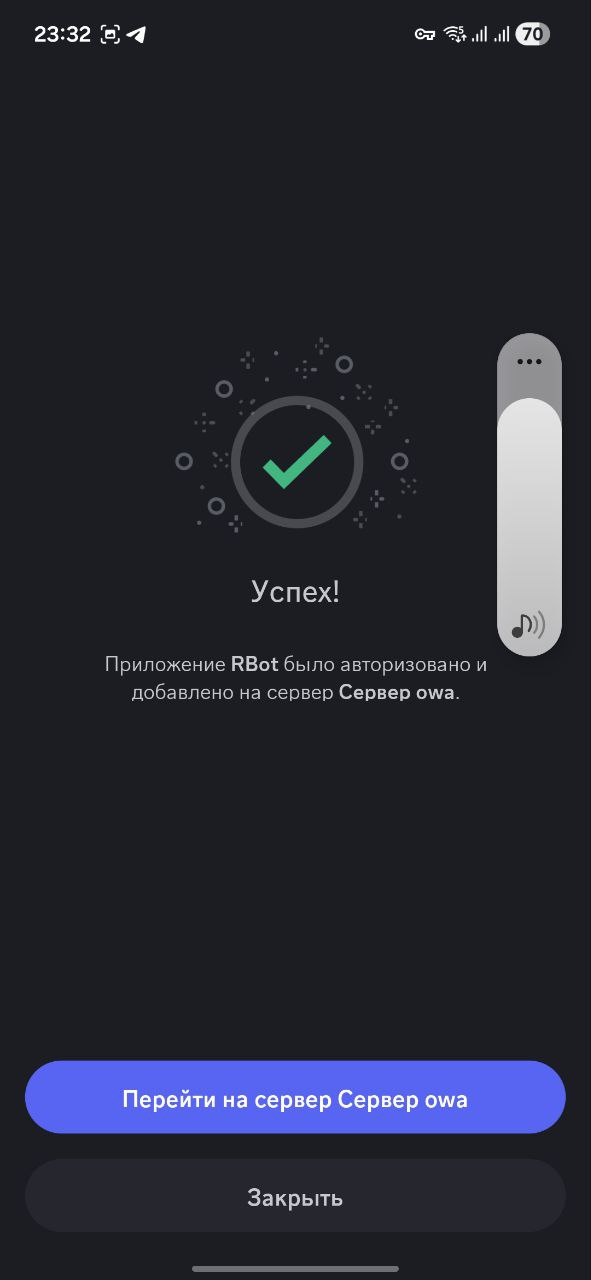
<figure><img src="https://2907848295-files.gitbook.io/~/files/v0/b/gitbook-x-prod.appspot.com/o/spaces%2F8Bijd4WREgt6P8JTIedC%2Fuploads%2FuFfOgz0OdxMBoSgzeExZ%2Fimage.png?alt=media&#x26;token=06f86b3e-a0c0-4067-9196-ad7efd6df320" alt=""><figcaption></figcaption></figure>

You've added the bot to your server!